
Rules Configuration
Subgroups
A subgroup contains one or more conditions.
All conditions within a subgroup must pass → AND logic.
If any subgroup matches, the entire EasyBooking group matches → OR logic.
First-Match Only
Defines how multi-value fields are evaluated:
First-Match Only = true → Only the first value is evaluated
First-Match Only = false → Any value may satisfy the condition
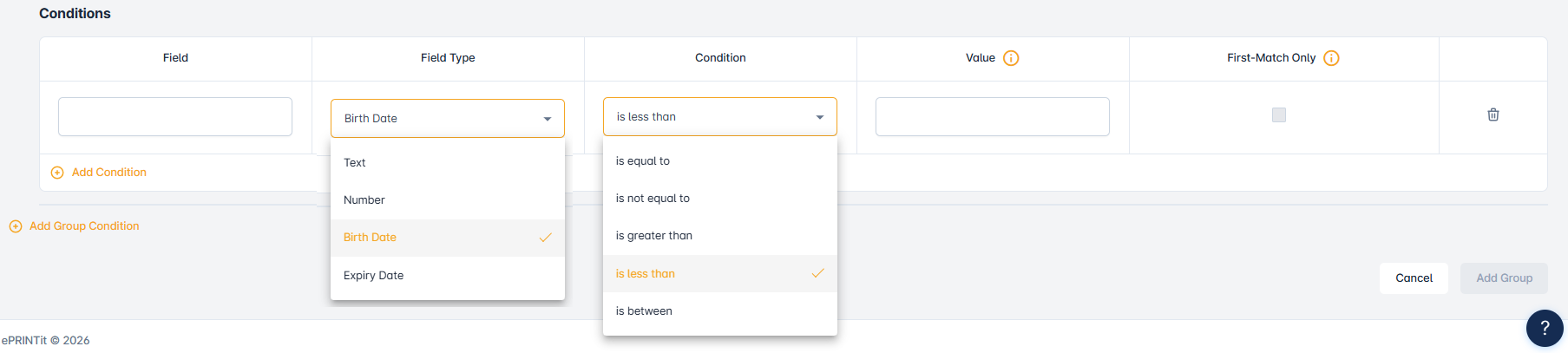
Support for equal and not_equal
Equal and not_equal can also work with comma-separated values
Condition | Description | Example |
|---|---|---|
equal | Compares a field’s value against one or more comma-separated values (case-insensitive). Returns true if the field matches any of the given values. |
|
not_equal | Compares a field’s value against one or more comma-separated values (case-insensitive). Returns true if the field does not match any of the given values. |
|
Case Sensitivity
All string comparisons are case-insensitive.
First-Match Only Behavior
First-Match Only: true
Evaluates only the first value in multi-value fields.
Example:
Field: "premium, beta, student"
→ Only "premium" is evaluated
First-Match Only: false
Any value in a multi-value field may satisfy the condition.
Example:
Field: "premium, beta, student"
→ Any of "premium", "beta", "student" may match
Workflow
Step 1: User Login
User authenticates via IDP (Sirsi, Innovative, Polaris, SIP2)
System validates credentials
Step 2: Check for Direct Group Mapping
If the IDP already provides a GroupName, EasyBooking rules are not used.
Otherwise, the EasyBooking Group Matching workflow begins.
Step 3: Load Active EasyBooking Groups
Only active groups are considered
Groups are sorted by priority (ascending)
Step 4: Evaluate Each EasyBooking Group
1. Subgroup Evaluation
Each subgroup is evaluated independently
AND logic inside a subgroup → all conditions must pass
OR logic between subgroups → at least one must pass
2. Condition Evaluation
Each condition is checked against user data
Multi-value fields respect the First-Match Only setting
If any condition in a subgroup fails → subgroup fails
If any subgroup matches → group matches
Step 5: Stop When First Match Is Found
Because priority is ascending, the first matched group wins.
Step 6: Permission Group Assignment
If a group matches → map to its configured permission group
If no group matches → assign the default permission group for the IDP
Evaluation Logic Summary
Level | Logic Type | Requirement | Behavior |
|---|---|---|---|
Subgroup | AND | All conditions must match | All conditions must evaluate to true |
EasyBooking Group | OR | At least one subgroup must match | Any matching subgroup makes the group valid |
Group Selection | Priority | First matched lowest-priority-number group | Priority 1 evaluated before 2, etc. |
First-Match Only | Varies | true = first value only, false = any value | Controls multi-value field evaluation |
Workflow Examples
Example 1 — User Matches a Group
User Data
{
  "username": "jane",
  "email": "jane@gmail.com",
  "displayName": "Jane",
  "familyName": "Smith",
  "age": 17,
  "barcode": "YTH12345"
}
EasyBooking Groups
Library Booking Rules (Priority 1)
Youth Access Group
Age between [12, 18]
Barcode starts_with "YTH"
Senior Access Group
Age greater_than 65
Barcode starts_with "SR"
Gym Booking Rules (Priority 2)
Student Gym Group
MembershipType equal “Student”
Age less_than 25
Premium Gym Group
MembershipType equal “Premium”
Barcode starts_with "PRM"
Evaluation
Library Booking Rules
Youth Access Group → Matched
Senior Access Group → Not matched
→ Group matched
Gym Booking Rules
MembershipType missing → Not matched
→ Group not matched
Final Assignment
→ Selected group: Library Booking Rules
→ Assigned permission group: (mapped from Library Booking Rules)
Example 2 — No Group Matches → Fallback
User Data
{
  "username": "ashutosh",
  "email": "ashutosh@gmail.com",
  "displayName": "ashutosh",
  "familyName": "pandey",
  "age": 22
}
Evaluation
Library Booking Rules → No match
Gym Booking Rules → No match
Final Assignment
→ No matched groups
→ Assign default permission group for the IDP