
Print Submitted Job
When printing a document through an HP Embedded printer, the document is transmitted to the printer via a Network or USB connection. The printer system processes the file, converts it into a printable format, and then produces a physical copy with high-quality output. This ensures efficient handling of the print job from start to finish.
📘 Instructions
Print Submitted Job | Dynamic-Charges
Print Submitted Job | Account-Balance-Display
Print Submitted Job | Per-Page-Cost
Dynamic Charges
Charges for copy jobs vary based on the selected configurations. Users are informed in real-time about the cost implications of their choices.
Account Balance Display
The top right corner of the screen prominently displays the user's account balance. This feature provides users with immediate visibility into their available funds and the potential cost of the copy job.
Per Page Cost
On the right side of the page, the app presents the per-page cost, representing the price associated with a single-page copy. This information helps users make informed decisions based on their budget and requirements.
By integrating these features, the app not only allows users to customize their copy jobs but also ensures transparency by displaying the associated costs. This real-time feedback empowers users to manage their expenses effectively and make informed choices during the copy process.
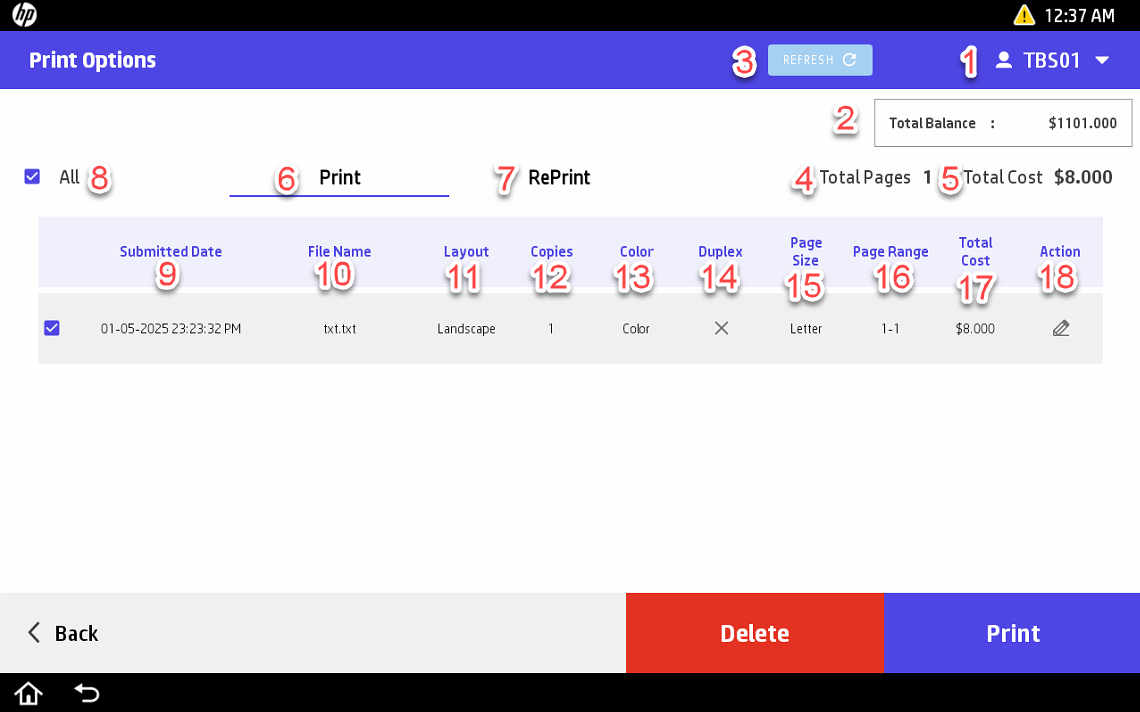
In the top right corner, you will see your Username.
Here you will see your total account balance.
Using this REFRESH button, you can refresh this Print Options page.
Here you will see the Total Pages selected for printing.
Here you will see the Total Cost of the job that is being printed.
In the Print section, you will find all the jobs to be printed.
In the RePrint section, you will find all the jobs already printed once. From this section, you can select any job and reprint it again.
Using this All button, you can select all the jobs for printing.
In the Submitted Date column, you will find the details about the submission date and time of all the jobs.
In the File Name column, you will find the details about the File name of all the jobs.
In the Layout column, you will find the details about the layout of all the jobs. Here you have two types of layouts which are as follows:
Landscape
Portrait
In the Copies column, you will find the details about the number of copies of all the jobs.
You will find the color of all the jobs in the Color column. Here you have two options which are as follows:
Color
Grayscale
In the Duplex column, you will find the details about the duplex nature of all the jobs. Here you have two options which are as follows:
One-Sided
Two-Sided
In the Page Size column, you will find the details about the different page sizes of all the jobs. Here you have multiple options which are as follows:
Letter
Legal
Ledger
Tabloid
A4
A3
Standard11x17
A0
A1
A2
Executive
Letter Small
Statement
In the Page Range column, you will find the details about the page range that is going to be printed for all the jobs.
In the Total Cost column, you will find the total cost of all the jobs.
In the Action column, using the action button, you can edit your job.
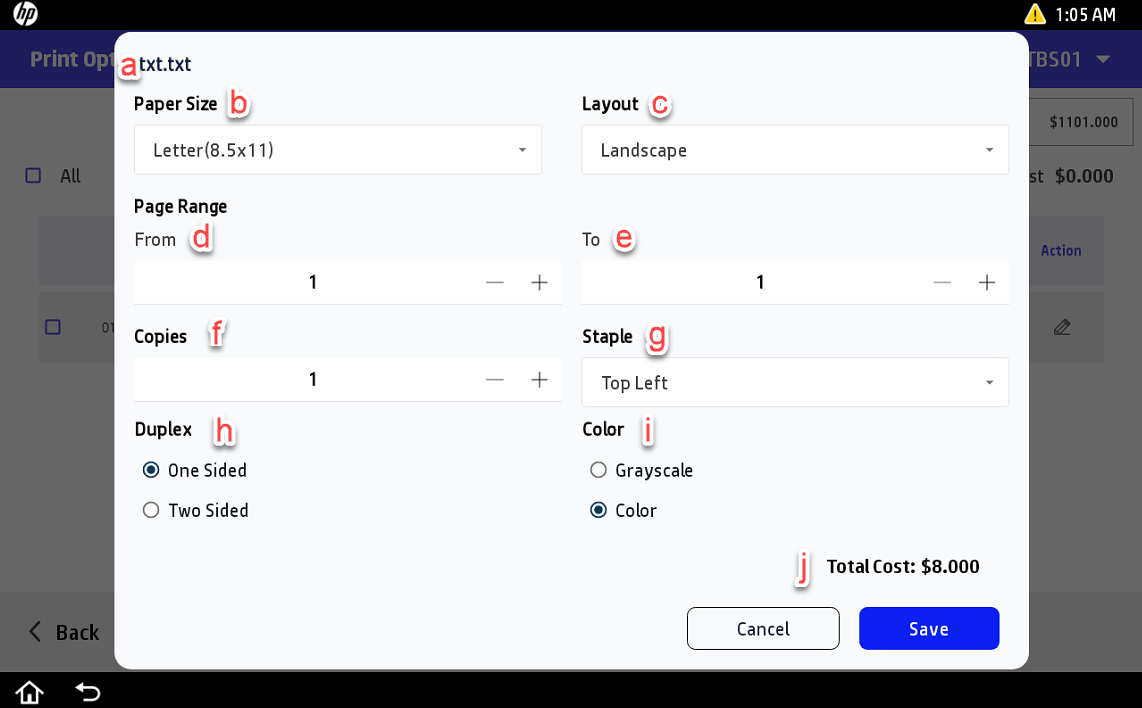
Here you will find the filename.
From this dropdown, you can change the Paper Size.
From this dropdown, you can change the Layout.
From here you can increase or decrease the page range- From.
From here you can increase or decrease the page range- To.
From here you can increase or decrease the number of Copies.
From this dropdown, you can change the Staple.
Top Left
Top Right
Bottom Left
Bottom Right
None
Here you find two radio buttons, from here you can change the duplex nature of the job.
One-Sided
Two-Sided
Here you find two radio buttons, from here you can change the color nature of the job.
Grayscale
Color
Here you will see the total cost of the job.
Using the Save button, you can save the changes.