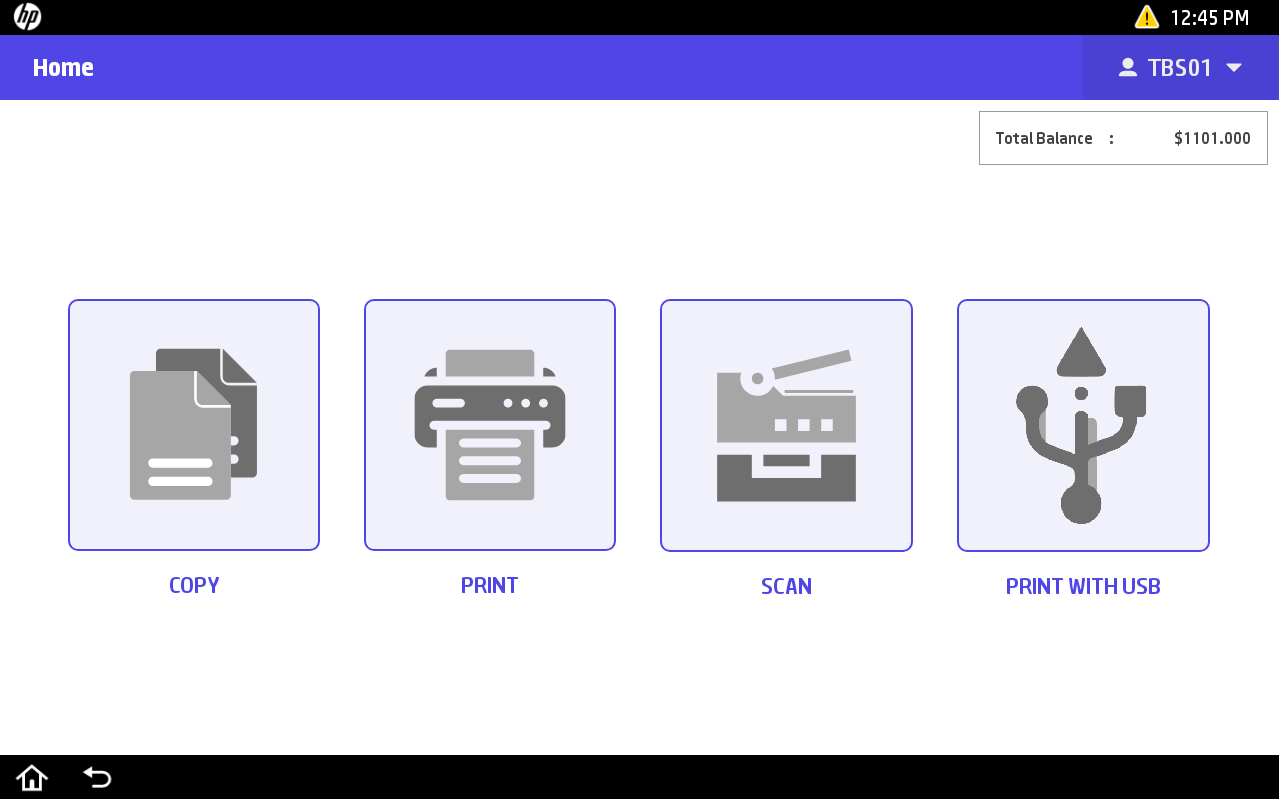
HP Embedded Application
The ePRINTit SaaS offers the users the option to authenticate themselves using the available identity providers, allowing users to copy, scan, print documents, and pay for them using the available payment gateways directly from an HP printer that is connected to the ePRINTit SaaS ecosystem.
For more information about configuring the identity providers, click here.
📘 Instructions
HP Embedded Application | Azure-AD
HP Embedded Application | GSuite
HP Embedded Application | Innovative
HP Embedded Application | Internal-User
HP Embedded Application | LDAP
HP Embedded Application | OIDC
HP Embedded Application | Polaris
HP Embedded Application | Release-Code
HP Embedded Application | SAML
HP Embedded Application | Sirsi
HP Embedded Application | Username
HP Embedded Application | WKP
Copy Document
Print Document
Scan Document
Azure AD
.png?inst-v=29524d95-c302-431a-bf18-55d1b7307de6)
Click on Azure AD.
Enter the Username and Password.
After successful validation, you'll be logged into the platform.
The files under the release code informed will be displayed.
GSuite
.png?inst-v=29524d95-c302-431a-bf18-55d1b7307de6)
Click on GSuite.
Type the Username and Password.
After successful validation, you'll be logged into the platform.
The release codes under the username informed will be displayed.
Innovative
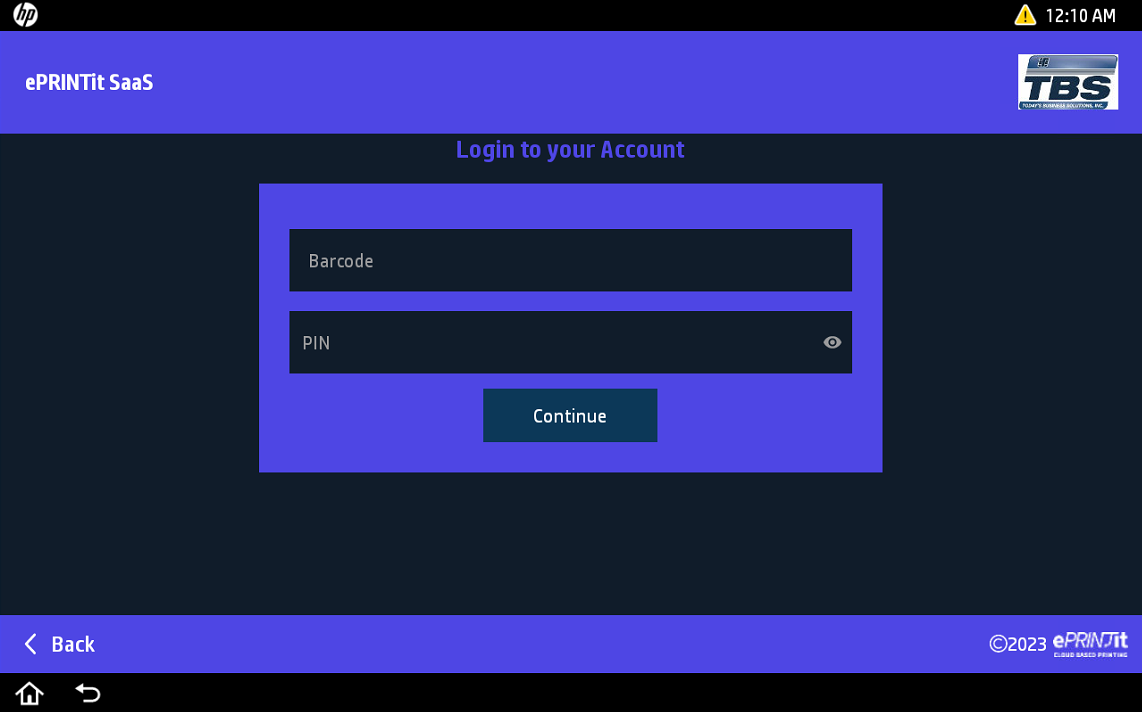
Click on Innovative.
Enter the Barcode and PIN.
After successful validation, you'll be logged into the platform.
The files under the release code informed will be displayed.
Internal User
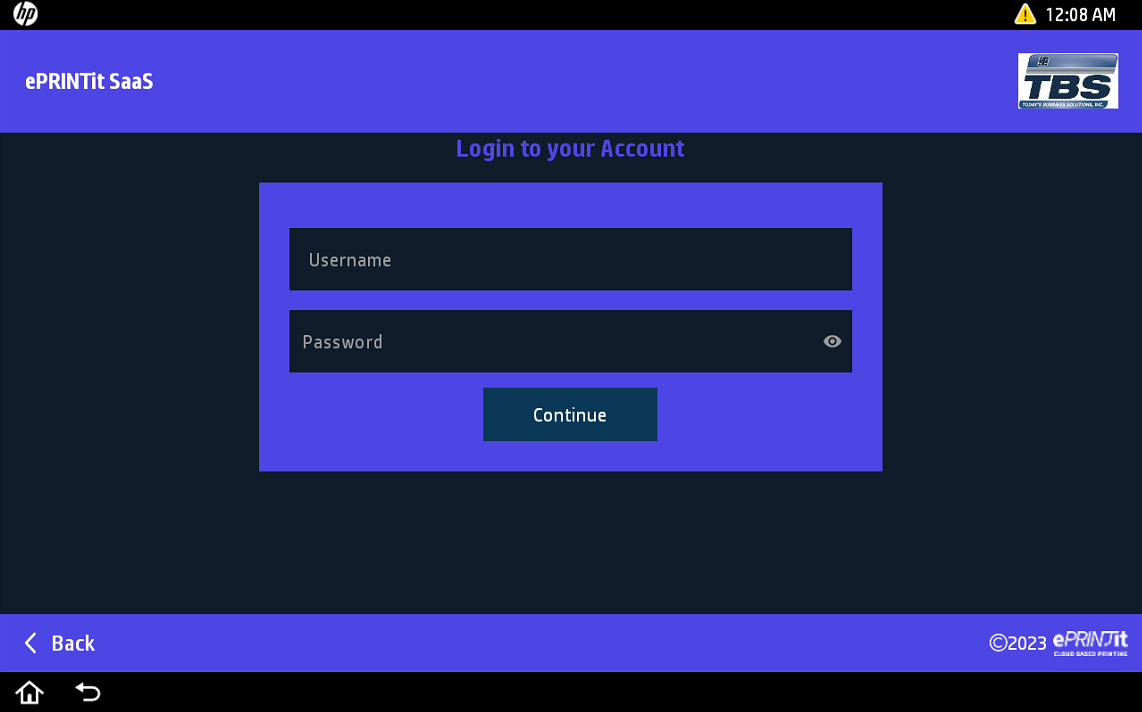
Click on Internal User.
Type the Username and Password.

Also, the user can update this Username and Password Label from the portal.
Click on the Continue button.
LDAP
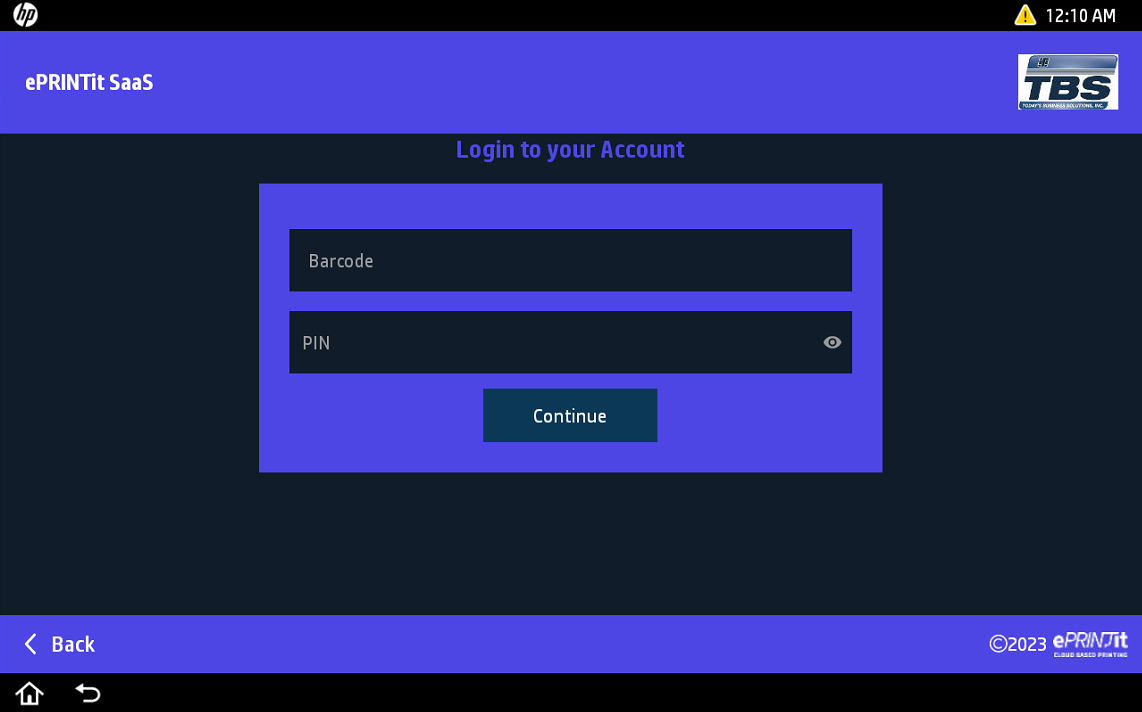
Click on LDAP.
Type the Username and Password.
After successful validation, you'll be logged into the platform.
The release codes under the username informed will be displayed.
OIDC
.png?inst-v=29524d95-c302-431a-bf18-55d1b7307de6)
Click on OIDC.
Type the Username and Password.
After successful validation, you'll be logged into the platform.
The release codes under the username informed will be displayed.
Polaris
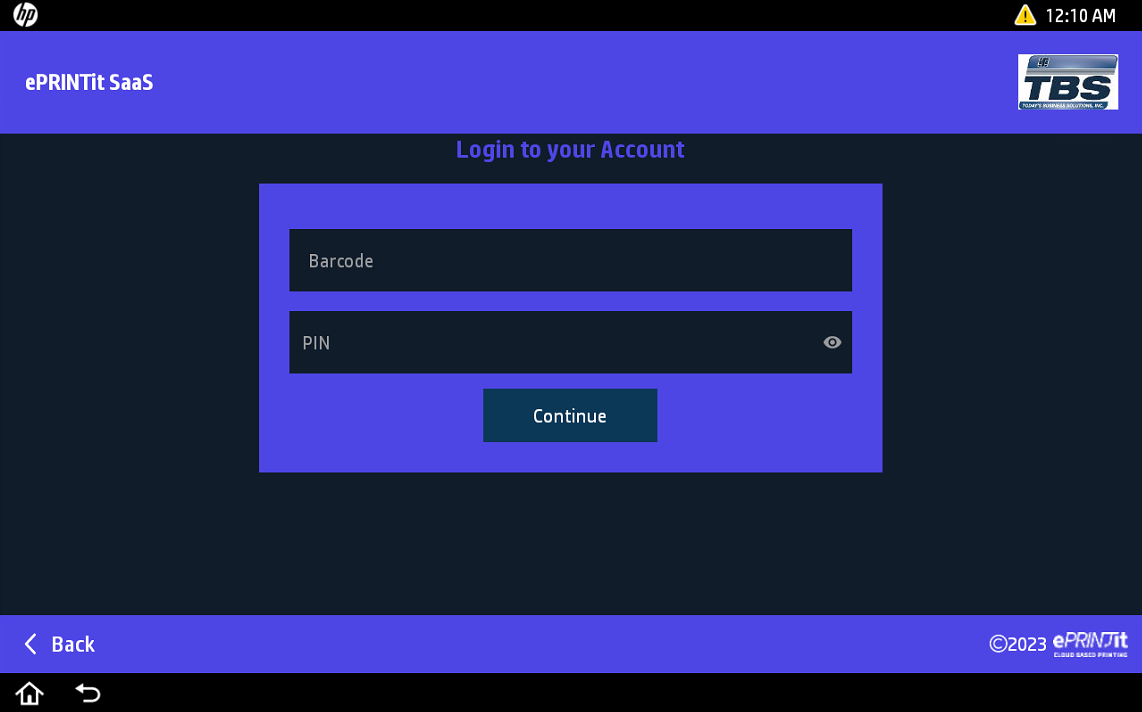
Click on Polaris.
Type the Barcode and PIN.
After successful validation, you'll be logged into the platform.
The release codes under the username informed will be displayed.
Release Code
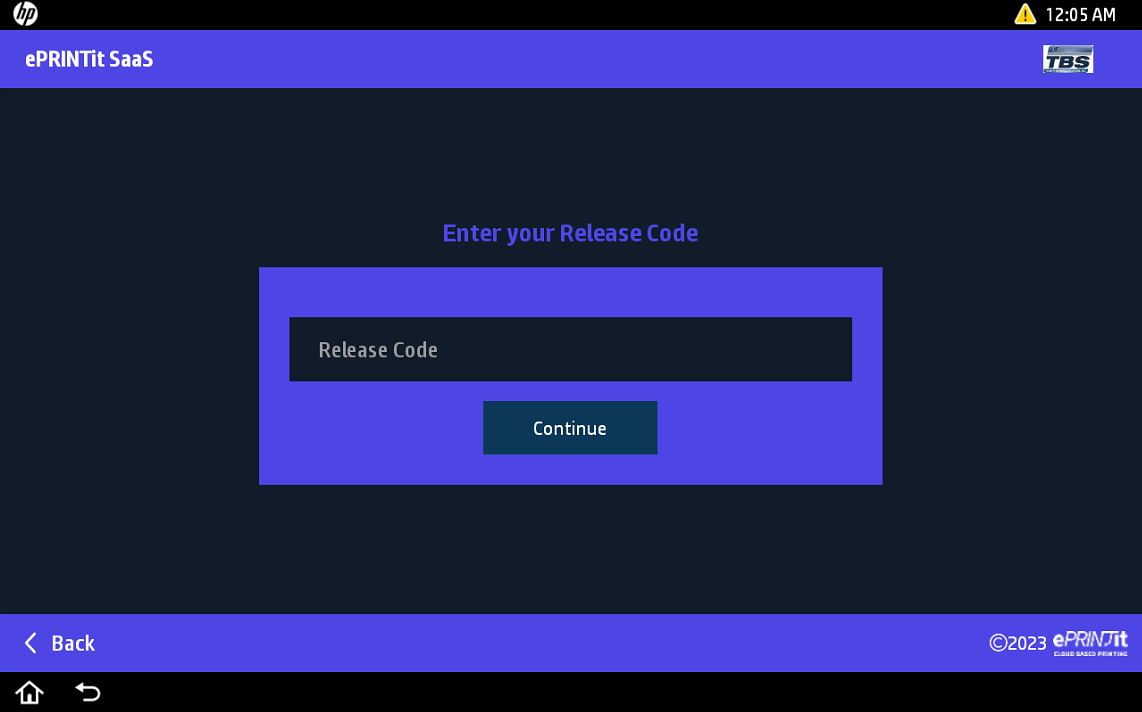
Click on Release Code.
Enter the Release Code.
After successful validation, you'll be logged into the platform.
The files under the release code informed will be displayed.
SAML
Click on SAML.
Type the Username and Password.
After successful validation, you'll be logged into the platform.
The release codes under the username informed will be displayed.
Sirsi
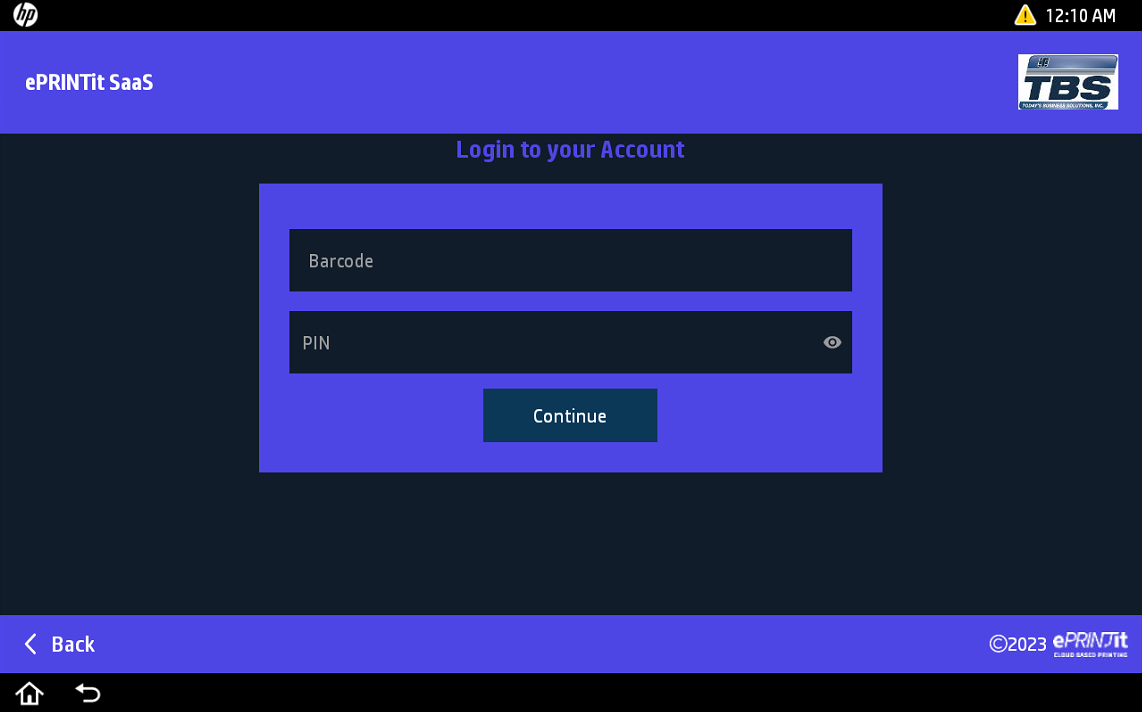
Click on Sirsi login.
Type the Barcode and PIN.
After successful validation, you'll be logged into the platform.
The release codes under the username informed will be displayed.
For Sirsi Identity Provider, the user can configure it for two options:
Barcode Login Only
Barcode and PIN Login
Username
Click on Username.
Type the Username and Password.
After successful validation, you'll be logged into the platform.
The release codes under the username informed will be displayed.
WKP
Tap the card
After successful validation, you'll be logged into the platform.
The release codes under the username informed will be displayed.
After successful validation using one of the available authentication methods, the user will be logged into the platform and the home screen will be displayed with the available options to be used.