Location
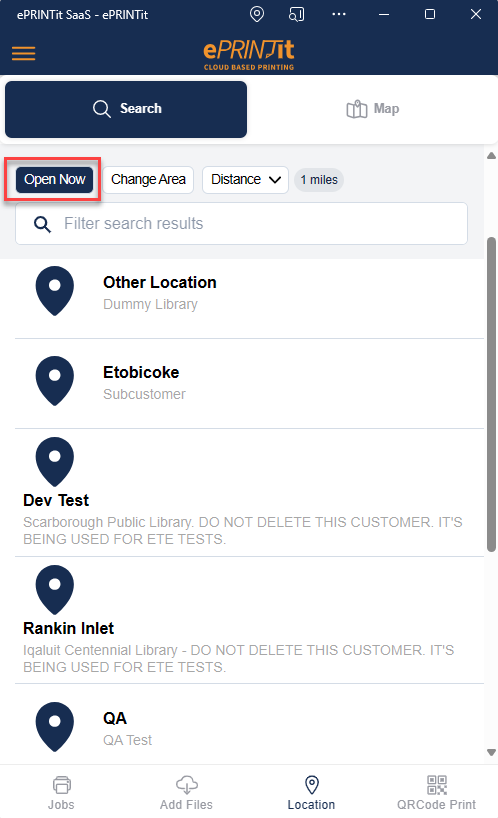
The Location functionality in ePRINTit SaaS is a feature that allows users to specify where they can physically retrieve their printed documents after sending print jobs to designated printers.
For more information about how to configure the locations click here. To get more information about how to associate the location to a device, click here.
This feature is particularly useful in environments with multiple printing locations, such as offices, libraries, hotels, or educational institutions. Here's a description of how the Location functionality typically works:
Accessing the Location Settings
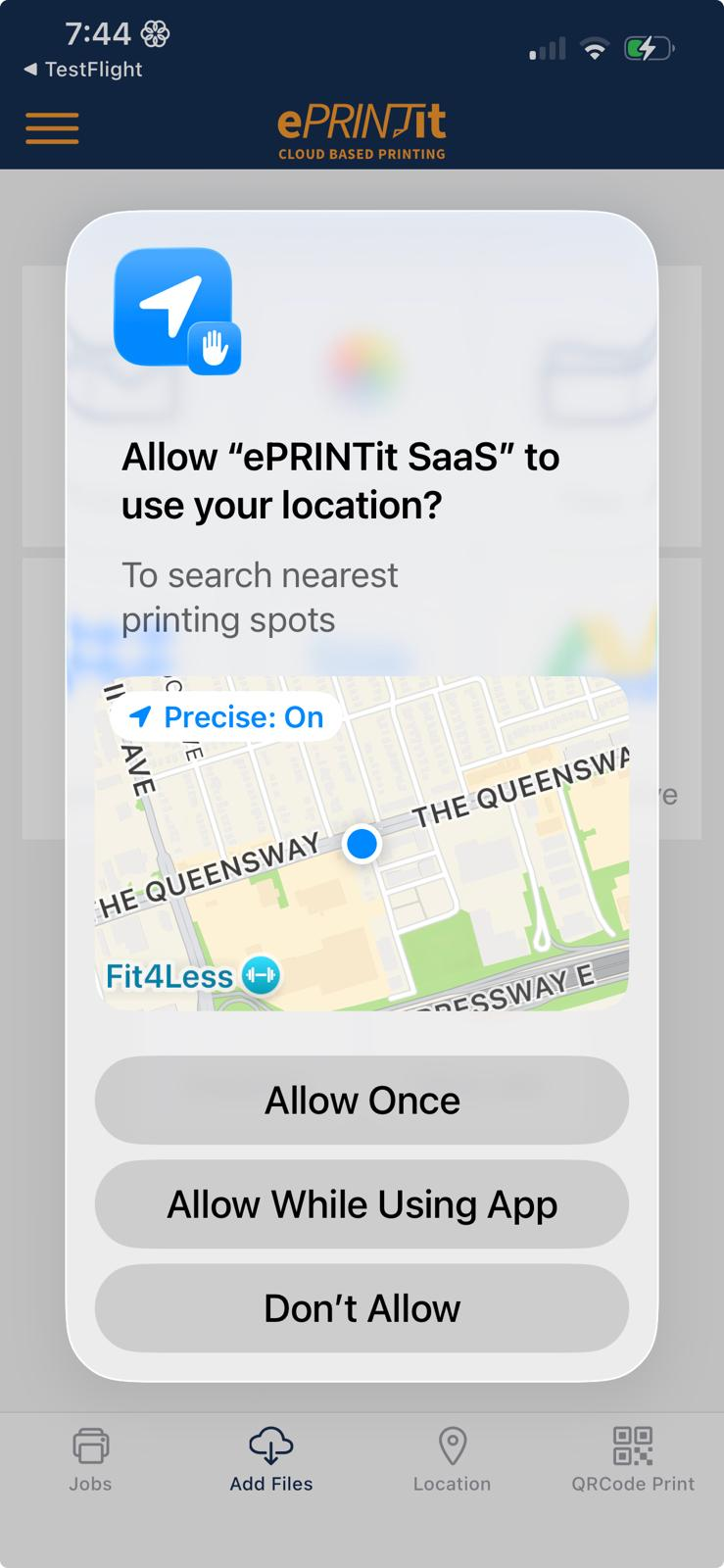
Users can access the Location functionality through the ePRINTit SaaS application, typically within the print job submission. ePRINTit SaaS application will request access to use the user’s location to look for the nearest available locations.
Selecting a Printing Location
Users are presented with a list of available printing locations, which could include different offices, printers on different floors, or various locations within a facility.
Users can browse and select the specific printing location from which they want to collect their printed documents.

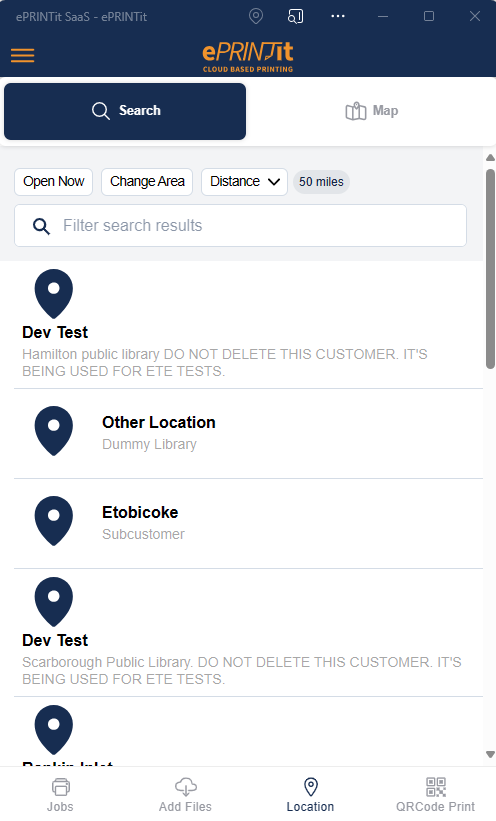
Display of Available Printers
Once a location is selected, the ePRINTit SaaS application will update the screen color, considering the theme color of the selected customer/location. Once selected the location the files can be submitted.
After the location is selected, user can start printing the files.
Click on the Change Area button for getting list of printer of some other location.
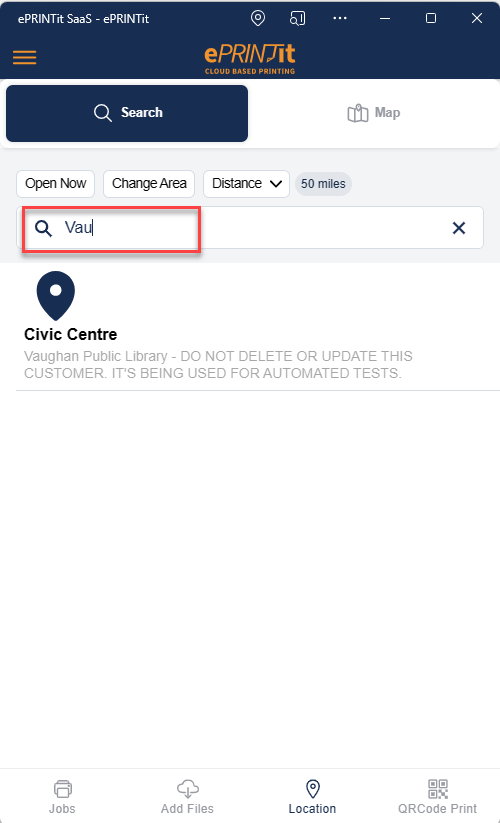
User can search for printer on a specific location by adding any of the below information in the Change your search area search text box without enabling the Geo-Locate feature.
Country: By adding country name, you will get the list of all the printers available in that country.
State: By adding state name, you will get the list of all the printers available in that state.
City: By adding city name, you will get the list of all the printers available in that city.
Zip: By adding zip code, you will get the list of all the printers available in that zip code address.
User have a filter option for the area search which is Distance.
From the distance button, you can select the range of distance in which you want to filter the list of printers. Here you have maximum of 100 miles and minimum 1 mile option.
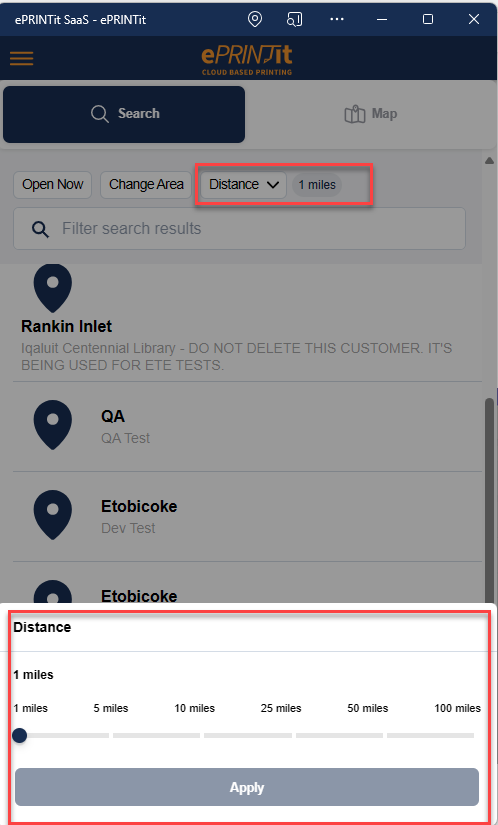
After selecting the distance, click on the Apply button for applying the filter.
You can also apply Open Now filter for filtering the list of printers which are available at that time.