
User Accounts
Accounts represent the different login profiles a user can create using various Identity Providers (IDPs). Each account corresponds to a specific IDP, and any print jobs submitted while logged into that IDP are associated only with that account. Jobs are never shared across accounts.
Users can also add funds to an individual account through the payment gateway. Any balance added is tied exclusively to that account and can only be used when the user is logged in with the same IDP.

Before adding an account to the ePRINTit SaaS Mobile App, the user must select the location where the print jobs will be released. Each location is associated with a specific customer, so the account will also be linked to that customer and all jobs submitted under it.
To add an account, the user has to follow the below steps:
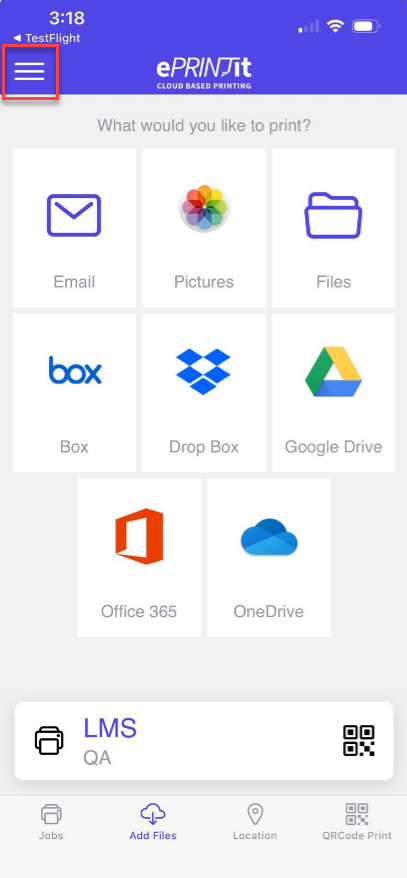
Click on the 3 dashes in the top left corner.
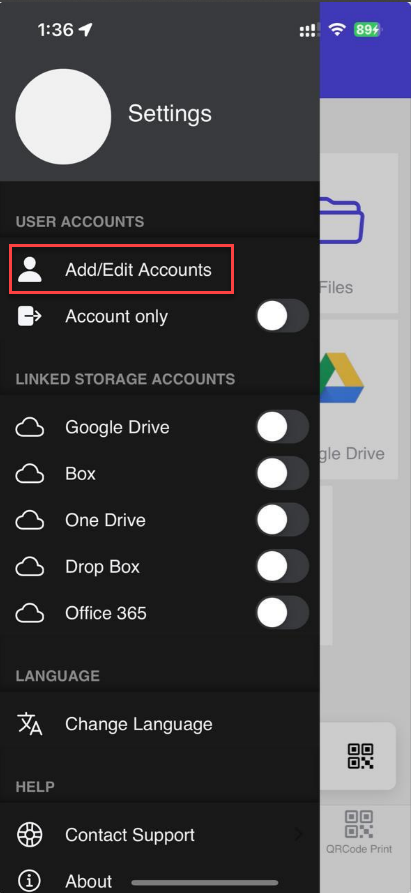
Now, click on the Add/Edit Accounts.
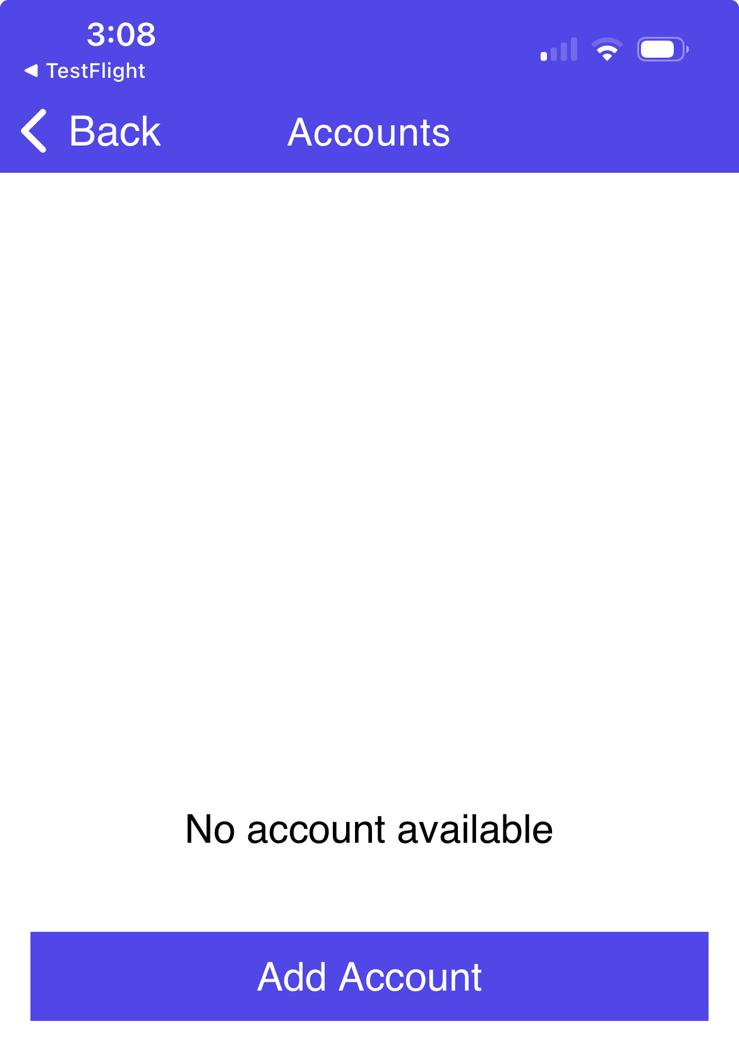
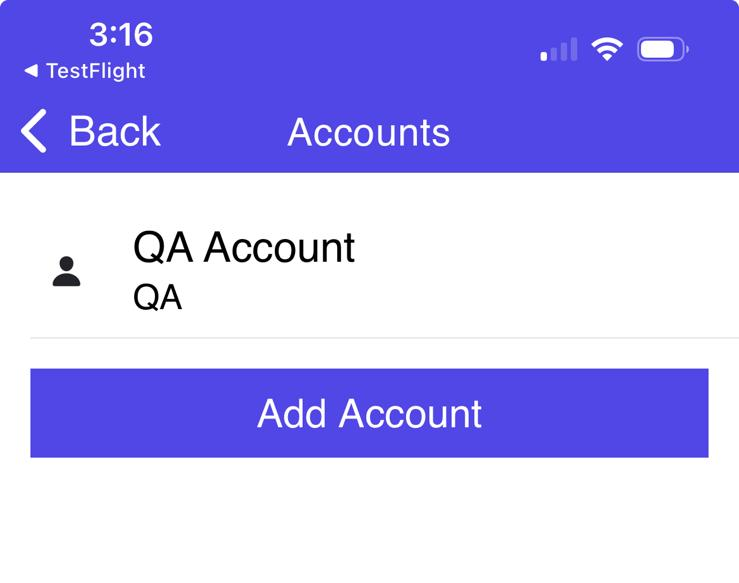
Now, if any account is added previously will display here. For adding a new account click on the Add Account button.
Now fill in the following information:
Account: Enter the name of the account owner.
Description: Enter the description here.
Identity Provider: From this dropdown, select the Identity provider.
Set as Default: If this toggle bar is enabled, then this account will be set as default.
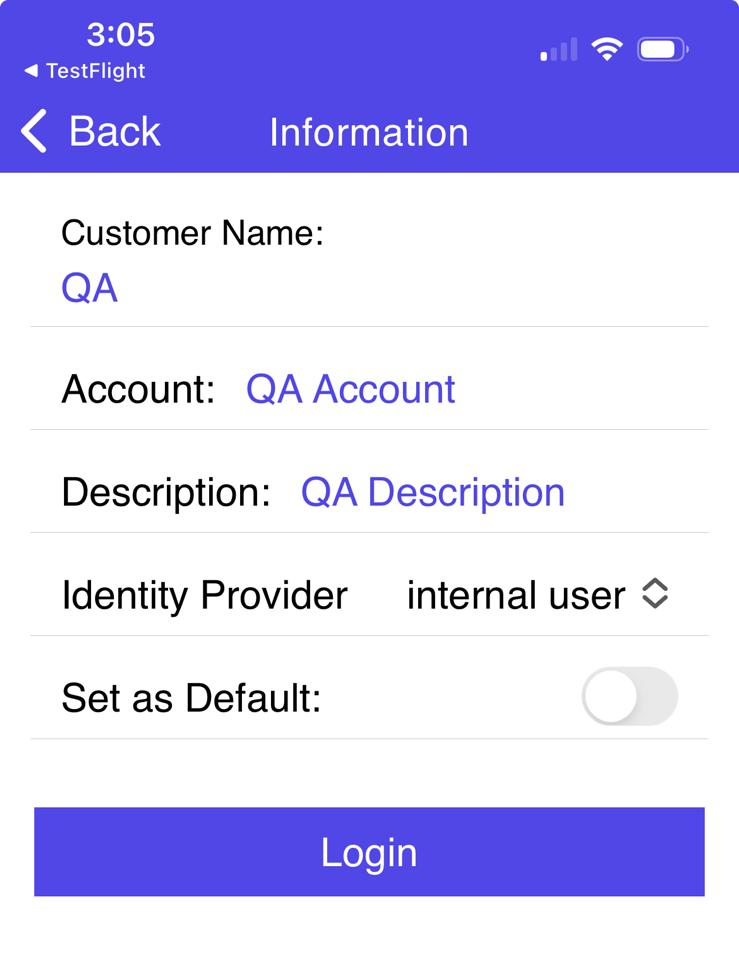
Now click on the Login button to log in using the selected identity provider. Enter Username and Password and then click on the Submit button.
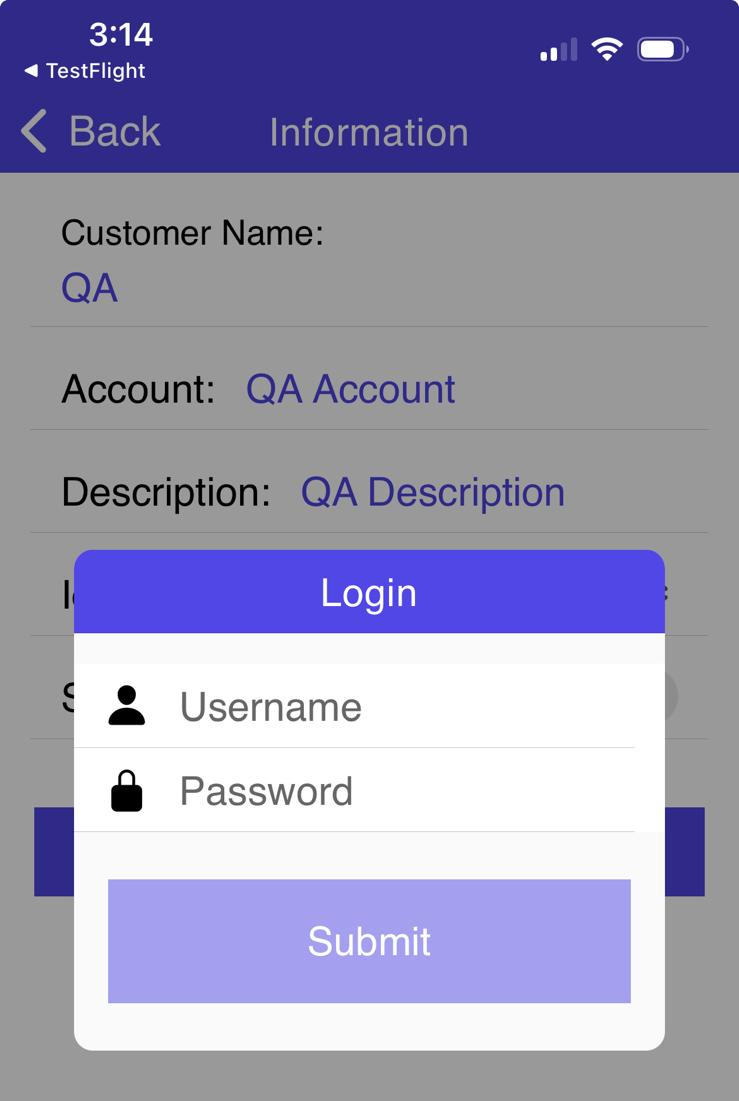
After successful login, click on the Save button to add this account.
Creating an account is optional. A user only needs an account if they want to:
Pay for print jobs directly from the app, and
Access the User Portal to view uploaded and printed jobs.
If the user does not need to track jobs or only wants to pick up and pay for them directly at the print location, creating an account is not required.