Mobile Web App (No install)
This mobile app allows you to print documents from your mobile device using a browser, so no installation is required. It is compatible with both iOS and Android platforms and supports a wide range of document formats.
Getting Started:
First, ensure that your mobile has data service.
Open the browser on your mobile device, and go to https://mobile.eprintitsaas.com.
During the first access, the privacy terms are displayed because apps often collect and use personal information, such as location data, contacts, and usage statistics. These terms are designed to inform users about what data the app will collect and how it will be used. The privacy policy is a legal document that outlines how the app developer will use, collect, and protect the personal data of its users.
Users are required to accept the terms and conditions before they can install and use the app. This is because by accepting the terms, the users are giving their consent for the app to collect and use their personal data as outlined in the privacy policy. This is important for both the user and the developer, as it ensures that the user is aware of and consents to the collection and use of their data, and it helps the developer to comply with data protection laws and regulations.
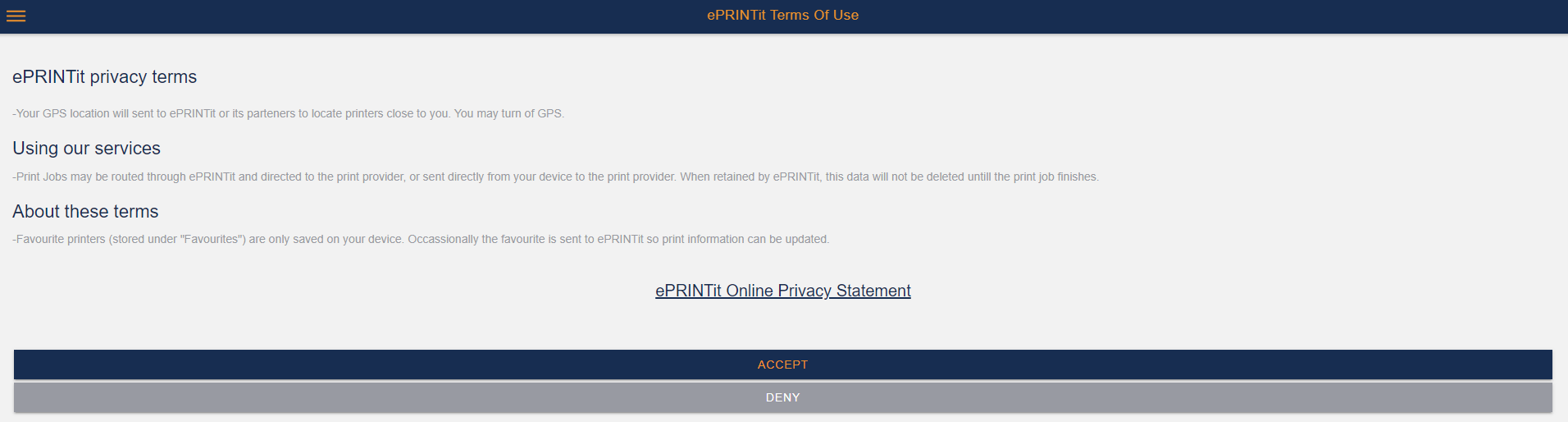
Read the privacy terms and accept it. A new screen will be displayed with the options from where you can select your file to be uploaded in the ePRINTit SaaS system for printing. In this screen you can also configure the device to where you are going to print your files.
📘 Instructions
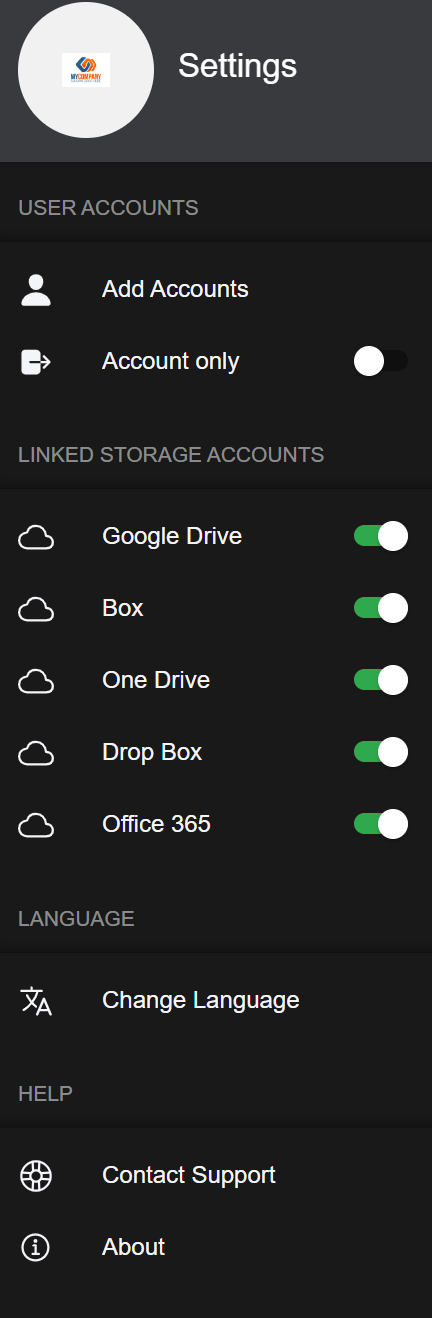
Settings
Jobs
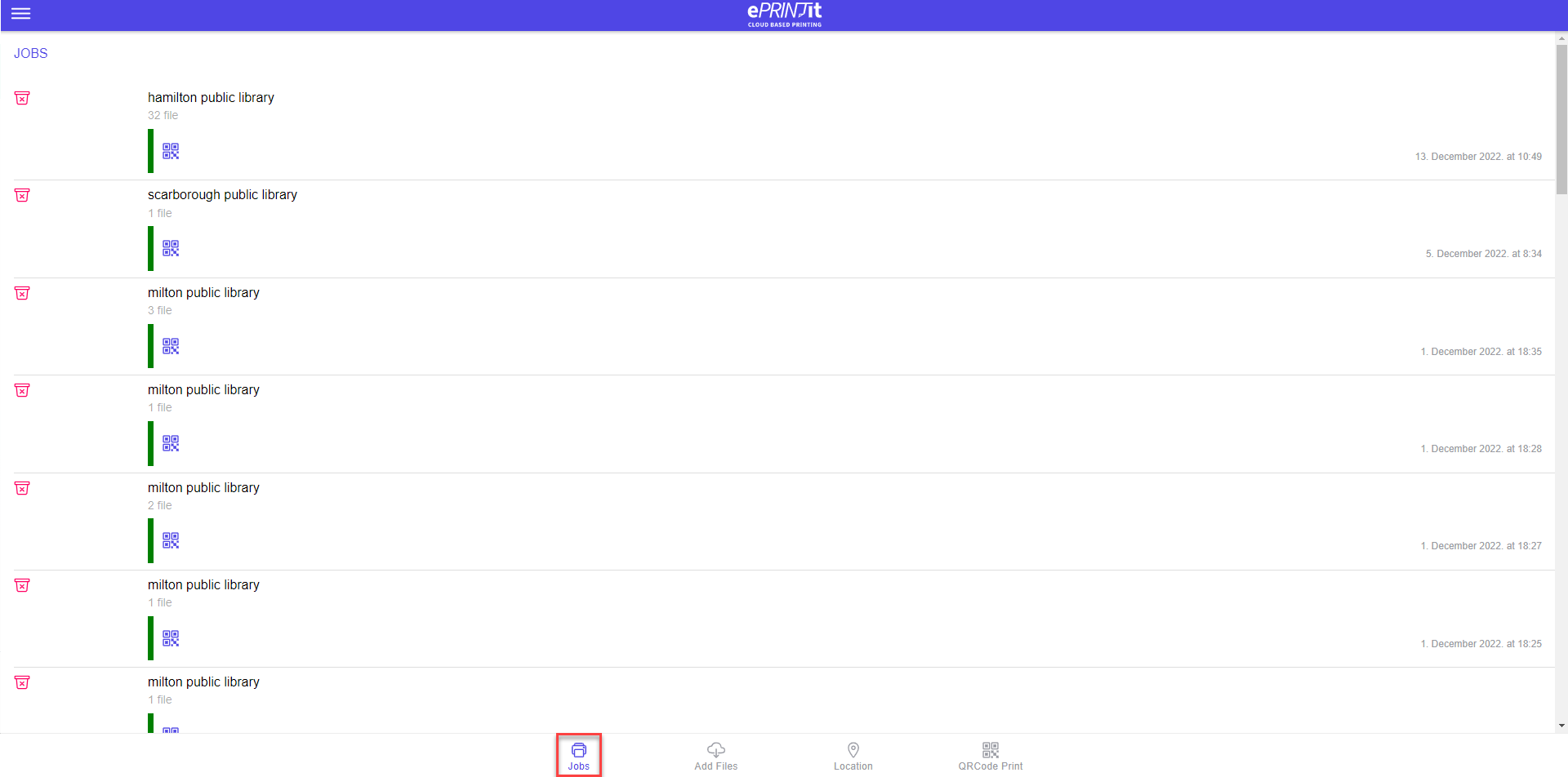
Jobs can be printed or deleted through this option.
If the user has not selected any account that he added while submitting a job then we are storing it on local data base of the device because we do not have the token to make the API call to fetch the job. As the token can only be used if we have the account added. So when you delete such a job where you selected Release code, LMS or guest for job upload then it will not make API call and delete only from the device not from the portal.
If you have have added any account from add account section and then use that account to upload and submit a job and then you delete it. Then in this case that job will also be deleted from portal as we will have the authorization token of the account used to upload the job and we can use that token to make the graphQL API call to delete the job using that token.